This is a MUST HAVE if you use DI-710, DI-718, DI-715 or Dataforth's isoLynx SLX 718 stand alone data logger!
Supported Devices:
DATAQ's DI-710, DI-718B, DI-715B, DI-718Bx and Dataforth's isoLynx SLX 718, both USB and Ethernet-based modules
Operating System:
Windows 98/Me/2000/XP/2003/Vista/Server 2008/7/NT
Why do you need this utility:
No matter how careful you are, one day you may still end up corrupting the file system on DI-71x stand alone data logger's SD by accidents. For example, you push and hold the action button for a little too long, so a recording operation turns into a formatting operation, or, you formatted a SD in DI-71x and recorded a few files before you realized it contained a lot of important files from previous sessions.
Can I get the lost WinDaq(.wdc) data files back?
To address this issue, we developed WinDaq SD Rescue. It is the best tool to recover the WinDaq (.wdc) files on the SD used by DI-71x stand alone data logger.
WinDaq SD Rescue
-
Supports all file formats used by DI-71x stand alone data logger. No, we can't help you to rescue lost photos from your Canon SD
-
Does not alter the data on the SD, but please keep write-protect tab on to prevent tampering from Microsoft Windows!
-
Has three powerful search modes:
-
Quick Search mode uses the BOOT and DIR info on the SD to locate WinDaq files. This mode is for SDs with tampered, damaged or cross-linked FAT region
-
Explore mode uses the BOOT and data region to locate WinDaq files. This mode is for SDs with tampered/damaged FAT and DIR region. For example, if you accidentally formatted a SD by holding the action button a little too long, you may still be able to use this mode to retrieve the data files recorded before the format operation.
-
Comb Through mode combs through all sectors of the SD to find WinDaq files. This mode is for SDs with damaged BOOT, FAT, DIR and/or partially corrupted data regions. For example, if you formatted a SD and recorded a few files before you realized it contained a lot of important files from previous sessions, you may use this mode to fish out all remaining WinDaq files. It is possible to have more than 512 .WDC files found under this mode. Reading that, you may ask: According to DI-710/718 data sheet, WinDaq SD stores up to 510 .WDC files, how come WinDaq SD Rescue finds more? The reason is .wdc files from previous session(s) may not be erased during formatting, so they may be fished out in this mode.
-
Installation:

To use WinDaq SD Rescue
Download and install WinDaq SD Rescue
Switch on the write-protect tab on the DI-71x SD to prevent tampering from Microsoft Windows
Plug the SD to your PC's SD reader.
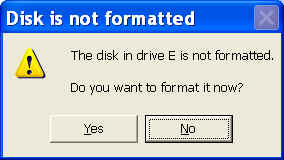
If Windows asks you to reformat the SD, press NO!
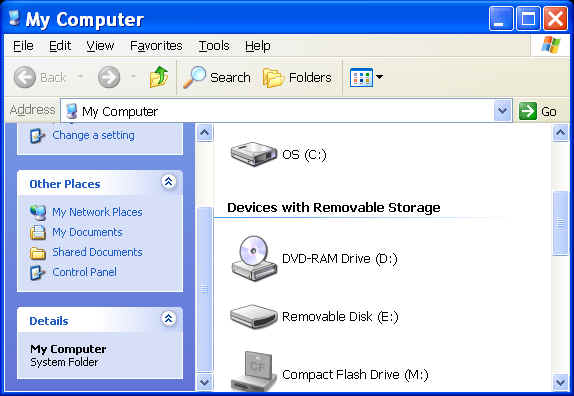
From Window's File Explorer (My Computer), determine the drive letter for SD. Here, it is letter E
Run WinDaq SD Rescue, and enter the drive letter found in the previous step
Select one of the search modes based on the damages to the SD, Quick Search, Explore, or Comb Through. Note the last mode may take minutes for a 2GB SD.
Quick Search mode lists the WinDaq file with the names generated by DI-71x. This mode is good for SDs with tampered, damaged or cross-linked FAT region
.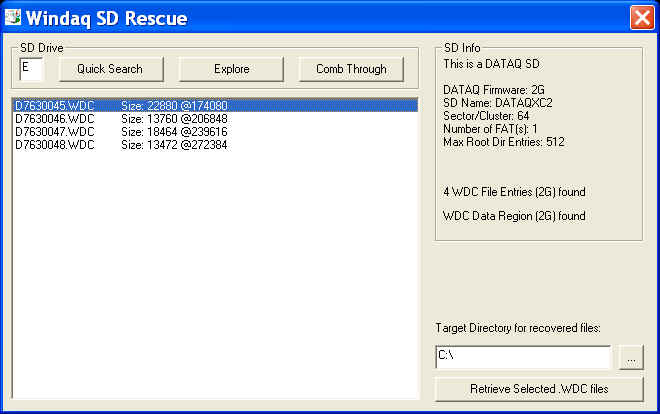
If the file size specified in DIR does not match the one specified in WDC header, you may pick one of the options manually
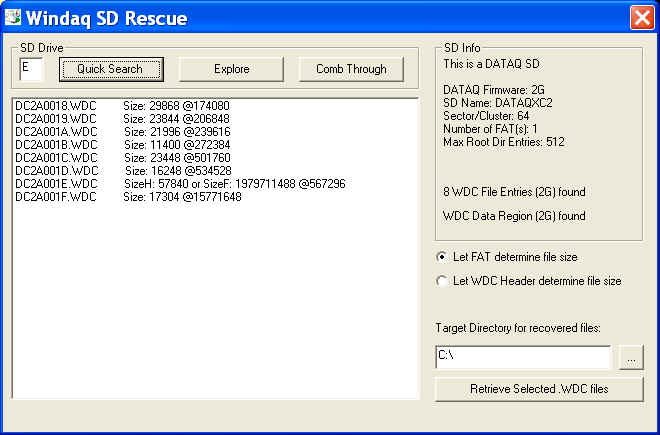
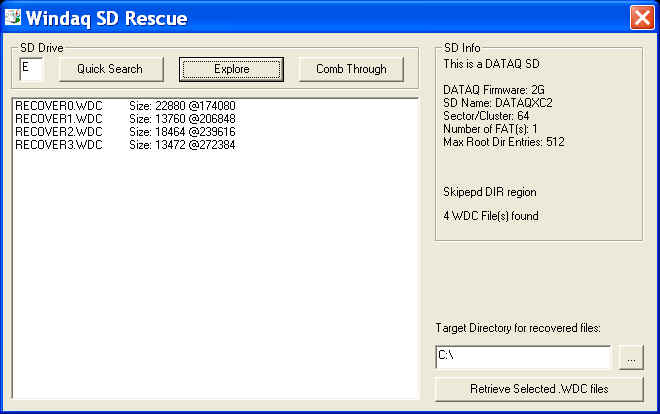
Explore mode lists WinDaq file in "RECOVER???.WDC" format. This mode is good for SDs with tampered and/or damaged BOOT, FAT and DIR region. For example, if you accidentally formatted a SD by holding the action button a little too long, you may still be able to use this mode to retrieve the data files recorded before the format operation.
.
Comb Through mode combs through all data sectors of the SD to find all possible WinDaq files. This mode is useful for SDs with damaged and/or tampered BOOT, FAT, DIR and data regions. For example, if you formatted a SD and recorded a few files before you realized it contained a lot of important WinDaq (.wdc) files from a previous session, you may use this mode to fish out all remaining WinDaq files
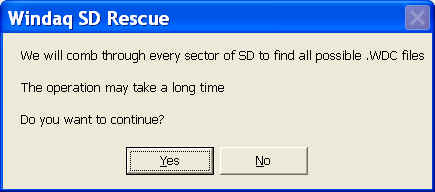
Due to the time it may take to complete the operation, Comb Through mode needs user confirmation before starting the operation.
.
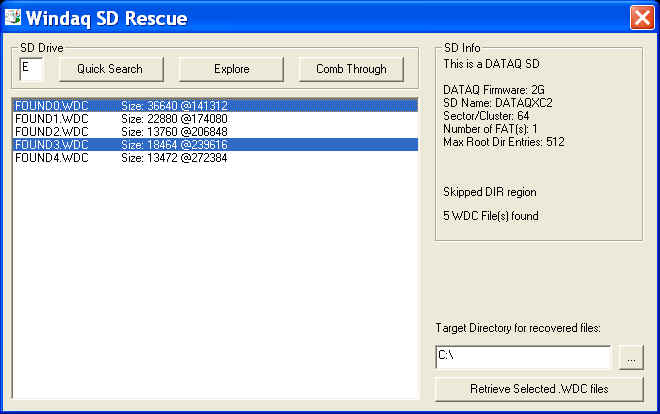
Comb Through mode lists WinDaq file in "FOUND???.WDC" format.
.
It is possible to have more than 512 .WDC files found under this mode. You may ask: According to DI-710/718 data sheet, WinDaq SD stores up to 510 .WDC files, how come WinDaq SD Rescue finds more? The reason is .wdc files from previous session(s) are not erased during formatting, so they may be fished out in this mode. Up to 2048 .WDC can be fished up in this mode.
Not all WinDaq files found in this mode are true WinDaq files, it may also include DI-710/718 configuration file
Select one or multiple WinDaq file(s) listed in the WinDaq Listbox
Select a target directory to save the files selected in previous step. You may type in the directory path or double click on the text box to pick a target directory from Windows' Common Dialogue Box.
Push the button "Retrieve Selected .WDC files" to retrieve WinDaq file(s)
If you have trouble opening the recovered WinDaq (.wdc) files, it may have further damages inside the files, and you will need to contact DATAQ's support to see if they can fix the error for you.
License:
Freeware
Last update: 02/24/22
© www.ultimaserial.com