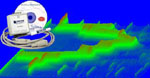
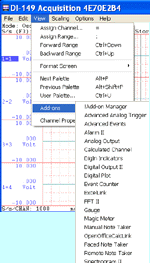
Question: Why do you want to acquire data inside a Visio document?
Answer: Think about an interactive presentation in meeting!
Specification of the sample program:
a) Acquire voltage signal between -10 to 10V via Channel 1 of DATAQ's data logger DI-194 at a rate of 240 Samples/second
b) The data is streamed back to the PC via COM 1
c) The input signal is displayed on a scrolling waveform window
Steps
1) Before we start, please download and install UltimaSerial.
2) Download the sample program
3) Open it with Microsoft Visio 2000.
4) Connect a DI-194 to COM 1 of your PC and push the Start button on the document
5) To take a look at the codes, please follow Tools->Macro->Visual BASIC Editor. Or, right-click on any an ActiveX control and follow Object -> View Code
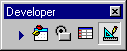
6) To re-arrange the buttons and graph, please enable the Developer Toolbox by right-clicking the tool bar area and check it, then select Design Mode. (The image below shows the Developer Toolbox with Design Mode on, which is the last icon in the toolbar). When you are done with the design, change back to Run mode before you can run the program again.
Last update: 11/18/16
Copyright: 2000-2005 www.UltimaSerial.com