Calculated Channel Recorder
up to 16 calculated channel derived from Windaq-enabled channels in real-time, such as Power =Current * Voltage, a=dV/dt, integration and polynomial conversion.
Calculated Channel Recorder uses flexible math equation to record
Application
Request from a customer:
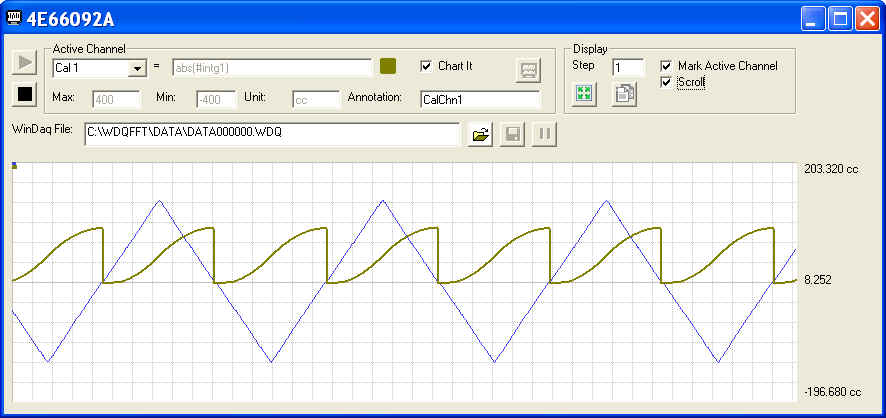
"We are recording ventilator flows with a pneumotachometer, and calibrate its output so that 0 V = 0 flow, and + or - V are proportional to inspiratory or expiratory flow rate. The signal crosses zero between breaths. We would like to be able to monitor tidal volume (flow integrated with respect to time) so we can control the depth of our breathing during a study. If we could integrate the flow and reset the integrator when flow hits zero it would do this"
Our answer:
#intg function will get the job done
Recording capability
-
Up to 16 calculated channels
-
Combine Windaq channels and calculated channels
-
Support Pause/Resume
-
Commented Event Marker at resume
-
User annotation for each channel, including calculated and Windaq channels
-
Auto increment for .WDQ file name
-
File size: up to 4GB
Applications
-
Product of multiple channels, for examle, Watt = Voltage * Current
-
Changing rate, for example,. A = dV/dT
-
Non-linear sensor, for example, thermocouple's V-T curve is non-linear
Performance and Features
-
Maximum throughput rate depends on many factors. If only visual display is needed, please use Calculated Channel instead.
-
Here are some suggestions on how to maximize the performance:
-
Enable as few Windaq channels as possible.
-
Do not leave blank calculated channel(s) between assigned ones, for example, if two calculated channels are needed, assign them to Cal 1 and 2 and leave the rest blank instead of assigning them to Cal 1 and Cal 15 and leaving Cal 2 to Cal 14 blank
-
If the sample rate is a constant, use a constant in the equation instead of referring to #@
-
-
All important settings are retained between sessions, which include
-
MathExpression/Min/Max/Unit for each calculated channel
-
Included Windaq Channels
-
Chart scaling/offset for both calculated and Windaq channels
-
Windaq file name/path
-
Chart legend format
-
Scroll/Sweep mode
-
Erase bar
-
To use this feature, you should start the add-on from the SAME WinDaq logical channel. For example, highlight the second channel on WinDaq, start the add-on, set up the add-on then exit. Now the configuration is saved in a configuration file associated with second channel. You can have multiple configurations for the same device, each configuration associated with a different WinDaq logical channel. To recall the configuration stored associated with logical channel 2, highlight the channel on WinDaq, start the add-on.
-
The logical channel mentioned above is not the physical channel, it is the logical order of a physical channel listed in the channel selection box. For example, we have two WinDaq setups, one with physical channel 1,2,3,4,6,8, and the another with physical channel 6,7,9,10,14,15. If the add-on configuration is associated with the second logical channel, then highlighting physical channel 2 from the first setup then start the addon will be the same as highlighting physical channel 7 then start the addon.
-
-
Chart Features
-
Plot all (up to 16) channels, which can be a mix of calculated channels and Windaq channels
-
To restore full dynamic range of a specific channel, click FS button
-
To space all waveform evenly, click "BestFit" button
-
To slow down the scrolling speed of the waveform, which will not affect file operation, increase the Step
-
Switch between limit/div legends, double click on the legends
-
Scroll or Sweep mode
-
Normal/Double width for the selected channel
-
Enable/Disable erase bar in sweep mode
-
Sizeable Chart
-
Use mouse wheel or buttons to zoom in/out
-
Copy button provides a copy of the waveform to the clipboard
-
-
True math expression with many predefined operators and functions
-
Operators include: +, -, *, /, ^, %
-
Functions include: abs, floor, round, avg, log, sqrt, ceil, log10, acos, asin, atan, sin, sinh, cos, tan, cosh, tanh
-
To use the reading from a channel, use #n. For example, #0 is the reading from the first enabled channel in Windaq
-
To access the sample rate, use #@.
-
To integrate a channel, use #intg, e.g. #intg1. The integration will reset when signal crossing zero. In the above screen capture, abs(#intg1) is used to generate the absolute value for the integration.
-
You can use earlier readings to form a more complicated math expression. To do so, add a letter after #, and alphabet order of the letter represents the delay, such as:
-
#0 is the reading from channel 0
-
#A0 is the reading from channel 0, one scan earlier
-
#B1 is the reading from channel 1, two scans earlier
-
Readings from up to 26 scans earlier can be used, for example, #Z0.
-
For example: use ( #0-#A0)*#@, or #0-#A0, to form a two-point derivative
-
-
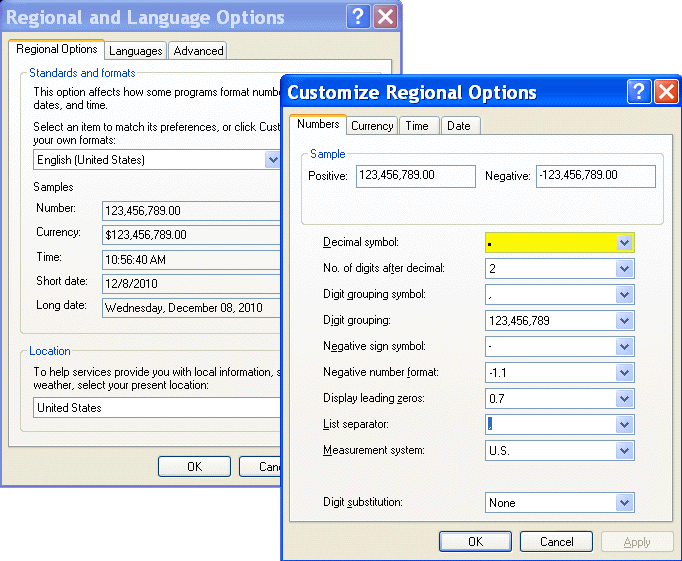
The math equation parser uses standard English (United States) notation without the present of digital grouping symbol, the decimal point must be "." (period) instead of "," (comma). If your Regional and Language Setting is not English (United States), you may need to adjust it
-
Menu Name Appeared under WinDaq->View->Add-ons
Calculated Channel Recorder
Configuration file
C:\Windows\CalWaveformIII.ini
Last update: 07/22/24
© www.UltimaSerial.com