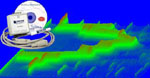
This addon provides real-time FFT display

Features
-
Multiple FFT sizes: 1024, 2048, 4096, 8192, 16384
and 32768
- Due to Windaq's memory allocation approach, the following rule
should be observed if you wish to use this add-on.
- For FFT size of 1024, up to 58 channels can be enabled in Windaq
- For FFT size of 2048, up to 29 channels can be enabled in Windaq
- For FFT size of 4096, up to 15 channels can be enabled in Windaq
- For FFT size of 8192, up to 7 channels can be enabled in Windaq
- For FFT size of 16384, up to 3 channels can be enabled in Windaq
- For FFT size of 32768, only 1 channel can be enabled in Windaq
- DC component of the signal can be removed before FFT is performed (Check AC option)
- Due to Windaq's memory allocation approach, the following rule
should be observed if you wish to use this add-on.
-
Three scaling options for the frequency axis:
-
Standard Frequency Scaling, each pixel line represents one frequency component and you may use the horizontal scroll bar to scroll the interested frequency range into view.
-
Logarithmic Frequency Scaling, to fit the full frequency range to the charting area with a logarithmic scale. This is perfect to generate a frequency response like what you see in an audio engineering chart. If Chart persist is checked, you may run a sweeping signal through the whole frequency range and see a frequency response chart of your sensor.
-
Full-fit Frequency Scaling, to fit the full frequency range to the charting area with a linear scale
-
-
While acquiring spectrum, you may
- use the left mouse button to drag the waveform up and down
- double-click the left of right mouse buttons to change the scaling of the waveform.
- adjust the Analog oscilloscope-like persistence control to study the trend of the spectrum (Refer to the above screen shot for visual effect)
-
push down the right mouse button to enable a
vertical cursor to exam to the waveform.

- click on AutoSet button to bring a weak signal into sight immediately
-
Once
you stop the live frequency display, you may
- push down the left mouse button on the chart to enable a vertical cursor and drag it around to study the spectrum
- push down the right mouse button on the chart to enable a
cross hair and drag it around to study the spectrum
- Intelligent Channel Select: Highlight/Select a channel in Windaq and fire up this Windaq add-on
To Use WinDaq Add-on FFT
Start WinDaq, and select (highlight) a channel
Invoke Windaq->View->Add-ons->FFT, and the selected channel will be used as the default channel.
Do not change WinDaq's configurations while WinDaq add-ons are running
Configuration file
If you can't find it there, you may need to look in C:\Users\...\AppData\Local\VirtualStore\Windows
Last update: 07/22/24
© www.UltimaSerial.com