Spectrogram
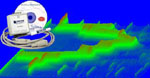
Spectrogram visualizes the frequency domain of an analog waveform in real-time, with 3D color-scaled waterfall spectrogram

Features
- FFT sizes: 1024, 2048, 4096 and 8192
- Due to Windaq's memory allocation approach, the following rule should be observed if you wish to use this add-on:
- For FFT size of 1024, up to 58 channels can be enabled in Windaq
- For FFT size of 2048, up to 29 channels can be enabled in Windaq
- For FFT size of 4096, up to 15 channels can be enabled in Windaq
- For FFT size of 8192, up to 7 channels can be enabled in Windaq
- DC offset of the signal can be removed before FFT is performed
- Regarding the update interval
- The update interval is controlled by Windows's Timer
- The power of PC's CPU determines if the minimum update interval is achievable or not
- Actual (averaged) update interval will be displayed on the spectrogram is started
- Actual (averaged) update interval will be used to calculated the elapsed time for the cross-hair
- For the Spectrum display on top
- Single click on AutoSet button will adjust the scale to bring a weak signal into sight immediately
- While acquiring spectrum, you may
- use the left mouse button to drag the waveform up and down
- double-click the left or right mouse button to change the scaling of the waveform.
- push down the right mouse button to enable a vertical cursor to exam to the waveform.

- Once you stop the live frequency display, you may
- push down the left mouse button on the chart to enable a vertical cursor and drag it around to study the spectrum
- push down the right mouse button on the chart to enable a cross hair and drag it around to study the spectrum
- For the Waterfall display on the bottom
- The waterfall display follows the scaling and offset of the spectrum display on top
- You may also click the left mouse button on the waterfall chart to enable a crosshair to show the frequency/elapsed time
- Intelligent Channel Select: Highlight/Select a channel in Windaq and fire up this Windaq add-on
To Use WinDaq Add-on Spectrogram
Start WinDaq, and select (highlight) a channel
Invoke Windaq->View->Add-ons->Spectrogram, and the selected channel will be used as the default channel.
Do not change WinDaq's configurations while WinDaq add-ons are running, or some add-ons may terminate.
Last update: 07/22/24
© www.UltimaSerial.com