The following is a step-by-step lesson on how to use ActiveX in Visual BASIC (VB).
For other VB varieties, including Visual Basic 2008, please visit our classroom .
In this lesson, we will use Ultimaserial ActiveX to develop a data acquisition application with DATAQ's Starter kit.
Specification of the sample program:
a) Acquire voltage signal between -10 to 10V via Channel 1 of DI-194 at a rate of 240 Samples/second
b) The data is streamed back to the PC via COM 1
c) The input signal is displayed on a scrolling waveform window
Before we start, please download and install UltimaSerial then run Visual BASIC, and make sure the ToolBox is on the your screen. If not, follow View->ToolBox to enable it. The ToolBox looks like this:

1) Place the mouse cursor on the ToolBox area, click on the right button of the mouse and select Components... and you will see this dialogue box:
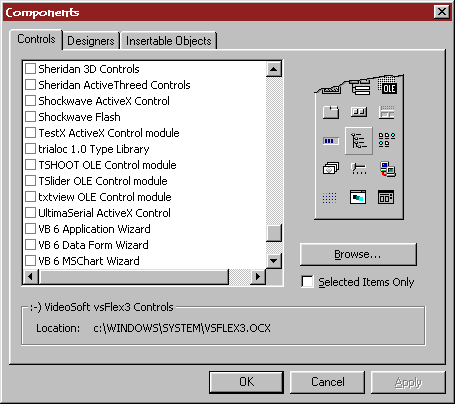
2) Select UltimaSerial ActiveX Control and XChart from UltimaSerial, then hit OK to bring these two controls into the ToolBox. If you can't find UltimaSerial and XChart in the list, you need to install UltimaSerial control.
Now, the ToolBox should be like this:

3) Place UltimaSerial, XChart and Button from the ToolBox to the blank form of the project.
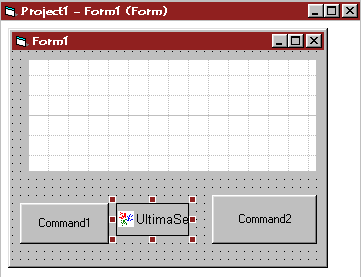
4) Double Click on Command1 and Command2 button to create the basic codes for them.
5) In the code editor, double-click on the NewData event of object UltimaSerial1 to use the event
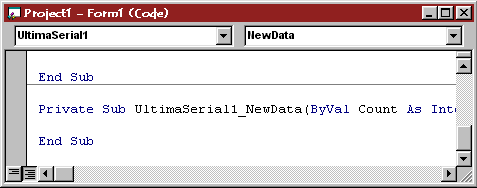
6) In the code editor, change the default codes (If you decide to type in the codes, you will notice the properties and methods will be displayed in a drop-down menu once you typed in ultimaserial1.)
From:
Private Sub Command1_Click()
End Sub
Private Sub Command2_Click()
End Sub
Private Sub UltimaSerial1_NewData(ByVal Count As Integer)
End Sub
To: (Watch for the blue text, we assume button Command1 and 2 for Start and Stop action)
Private Sub Command1_Click()
UltimaSerial1.Device = 194 'This tells the control that we are using DI-194
UltimaSerial1.CommPort = 1 'on COM 1
UltimaSerial1.ChannelCount = 1 'with 1 channel
UltimaSerial1.SampleRate = 240 'at 240Hz
UltimaSerial1.EventLevel = 1 'So that we can use NewData event
UltimaSerial1.Start 'Run!
End Sub
Private Sub Command2_Click()
UltimaSerial1.Stop 'Stop
End Sub
Private Sub UltimaSerial1_NewData(ByVal Count As Integer)
XChart1.Chart UltimaSerial1.GetData() 'Fetch and plot the data
End Sub
 Now you
can run the program by following Run->Start, or simply hitting F5 key!
Now you
can run the program by following Run->Start, or simply hitting F5 key!
Last update: 11/18/16
Copyright: 2000-2005 www.UltimaSerial.com