
UltimaSerial


In the step 7) of our Excel eLesson, we use the IeTimer to pace the speed of acquisition. If you play with it for a while, you will notice that the timing is not guaranteed. For example, if you start Microsoft Word while acquiring data from the DI-194 to Excel, you may lose a few readings! The reason is that the IeTimer uses the SetTimer function of Windows, and this is how good it will get. :-(
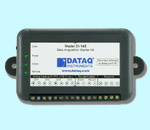
Here, we will show you how to pace the acquisition rate more accurately. Instead of using IeTimer exclusively to pace the acquisition, we only use it to empty the buffer and rely on the hardware clock on DI-194 as the sample rate for a more accurate timing. If you use Excel 2000, you can refer to our Excel samples and use the NewData Event directly without the help from IeTimer.
Again, we will try to acquire data every second. Please refer to the Excel eLesson for the previous steps. The only difference is in Step 7). Also, we demonstrate a new method called GetDataPt to empty the data buffer.
7) In the Visual Basic code editor, change the default codes (If you decide to type in the codes, you will notice the properties and methods will be displayed in a drop-down menu once you typed in ultimaserial1.)
From:
Private Sub CommandButton1_Click()
End Sub
Private Sub CommandButton2_Click()
End Sub
Private Sub IeTimer1_Timer()
End Sub
To (Watch for the blue text, we assume button Command1 and 2 for Start and Stop action)
Dim cellindex As Integer
Private Sub CommandButton1_Click()
UltimaSerial1.CommPort = 1
UltimaSerial1.Device = 194
UltimaSerial1.SampleRate = 1 'Sample once per second!
UltimaSerial1.EventLevel = 0
UltimaSerial1.Start
IeTimer1.Interval = 10
IeTimer1.Enabled = -1
For cellindex = 1 To 20
ActiveSheet.Cells(cellindex, 1) = ""
Next
cellindex = 1End Sub
Private Sub CommandButton2_Click()
IeTimer1.Enabled = ValFalse
UltimaSerial1.Stop
End Sub
Private Sub IeTimer1_Timer()
i = UltimaSerial1.AvailableDataIF i >0 THEN 'Send the data to Excel only when we have new data
ActiveSheet.Cells(cellindex, 1) = Format$(UltimaSerial1.GetDataPt() / 3276.8, "0.00")
'This converts the ADReadings to volt, see FAQ page for more infocellindex = cellindex + 1
'Move to next row
If cellindex > 20 Then cellindex = 1
'We use only the first twenty rowsEND IF
End Sub
Here you can learn how to send data to Excel directly from a VB program.
Last update: 02/29/12
Copyright: 2000-2005 www.UltimaSerial.com